Remember when “graphic design” meant either paying someone else to do it or wrestling with Photoshop tutorials at midnight?That era is mostly gone, thanks to a wave of online graphic designing tools that put polished, professional design within reach of pretty much anyone.Platforms like Canva, Adobe Express, and Figma have turned design into something you do in a browser tab, not something you outsource or suffer through. You can build a logo, put together an Instagram post, or pull off a full pitch deck without owning a single piece of software. No design degree required, no fifty-dollar font pack to hunt down, and no crashing your laptop trying to render a bloated PSD file.
Drag-and-drop templates, built-in stock libraries, and one-click resizing have replaced the steep learning curve that used to gatekeep decent visuals — and for most everyday design needs, that’s a trade worth making.
What Actually Makes a Tool “Good”
Table of Contents
Before we get into the list, let’s talk about what separates a genuinely useful design tool from one that just looks nice in a screenshot.Because honestly, plenty of these platforms shine in their marketing but crumble the moment you try to actually get work done on them.
1. Ease of Use
This matters more than anything else — and quite literally so. If adding simple text to your canvas requires watching a tutorial first, that’s already a red flag.The best tools feel obvious within the first five minutes. You should be dragging things around and hitting undo like it’s second nature, not googling “how to change font size in [tool name].
2. Templates
These are the next big one, and not just “are there templates,” but “are they actually usable.” Some platforms hand you templates that look great until you try to edit them, and suddenly every element is locked in place like a jigsaw puzzle glued together. Good templates bend to your content instead of forcing your content to bend to them.
3. Export quality
Trips people up more than you’d expect. A design can look perfect on your screen and then turn into a blurry mess the moment you download it, or worse, get slapped with a watermark you didn’t notice was coming. Check what formats a tool exports in — PNG, SVG, PDF — and whether the free version quietly limits resolution.
4. Collaboration
It matters if you’re working with anyone else, even loosely. Can a client leave comments? Can your teammate jump in and edit without you emailing files back and forth like it’s 2009? Tools that support real-time collaboration save you from that painful “final_v3_ACTUALFINAL.png” situation.
And then there’s AI features, which every tool seems to be bragging about now. Some of it is genuinely useful — background removal, layout suggestions, quick copy generation. Some of it is just a gimmick bolted on to justify a price hike. Worth checking, not worth chasing blindly.
These five criteria are worth holding onto as you read through the list — they’re what separated the tools that made the cut from the ones that didn’t.
Want to explore more project ideas? Read our more articles: https://www.calltutors.com/blog/category/project-ideas
Best Online Graphic Designing Tools (Overall Picks)
These are the online graphic designing tools that consistently show up when people ask “what should I even use,” and each one earns its spot for a different reason.
Unlike the desktop software of old, these platforms live entirely in your browser, so there’s nothing to install and nothing to configure before you can start creating. Think of this less like a ranking and more like a lineup — pick based on what you’re actually trying to make.
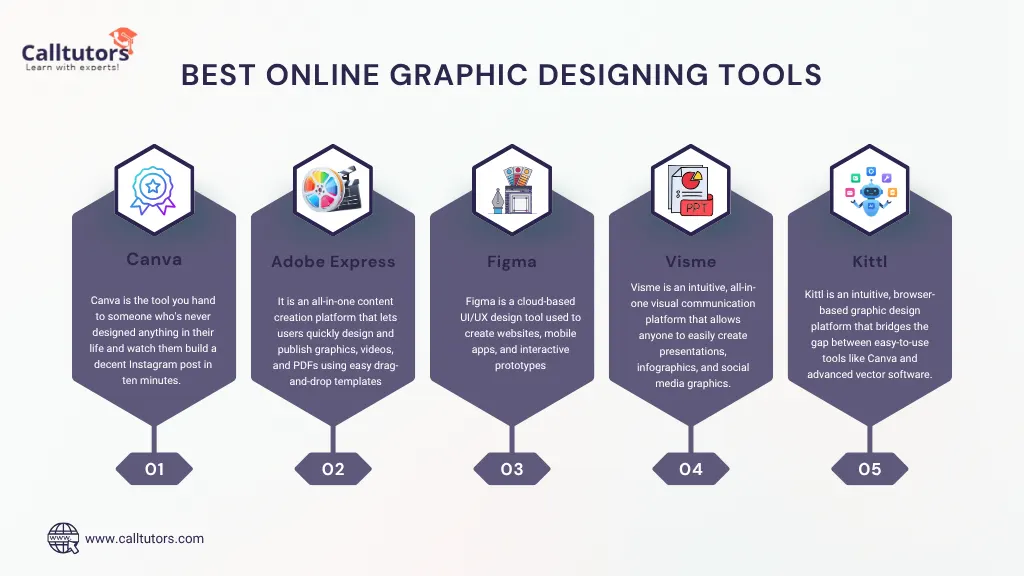
1. Canva
Canva is the tool you hand to someone who’s never designed anything in their life and watch them build a decent Instagram post in ten minutes. The template library is massive, the drag-and-drop interface barely has a learning curve, and its Magic Studio AI features handle background removal and layout tweaks without much fuss. It’s not the tool for pixel-perfect precision work, but for everyday content? Hard to beat.
2. Adobe Express
Think of this as Canva’s slightly more serious cousin. It’s built by Adobe, so it plugs nicely into Photoshop and Illustrator files if you’re already in that ecosystem, but it still runs entirely in the browser. You get a bit more control over layers and blending than Canva offers, without needing to open the full Adobe suite. Good middle ground if you want more polish but aren’t ready to commit to “real” design software.
3. Figma
Figma isn’t really a “make a flyer” tool — it’s built for UI and product design, wireframes, app screens, that sort of thing. But it’s earned a spot here because of how good it is at real-time collaboration. Multiple people can be editing the same file at once, leaving comments, adjusting components live. If your work involves designing anything screen-based with a team, Figma is basically the industry default now.
4. Visme
Visme leans into the “business content” side of design — think infographics, presentations, charts, reports. It’s the tool for when you need data to actually look good, not just decorative graphics. Some people describe it as Canva with a business degree, and that’s a fair way to put it.
5. Kittl
There’s a point where Canva templates start to blur together, and that’s usually when people discover Kittl.It’s built specifically for brand work — logos, merch designs, print-ready assets — and its vector tools give you more creative room than most beginner platforms allow.
Best Free Online Graphic Designing Tools
Let’s be real — not everyone wants to pull out a credit card just to make a birthday flyer or a resume. Here’s the good part — you don’t actually need to. Some of the best free online graphic designing tools rival their paid competitors, as long as you know where the free version starts cutting corners.
1. Canva Free
Yes, it’s back, and for good reason. Canva’s free tier is shockingly generous — thousands of templates, a solid chunk of stock photos, and enough export options to cover most everyday needs.
The catch is that some premium elements are locked behind a little crown icon, and you’ll bump into that eventually. But for one-off projects, it rarely gets in the way, which is exactly why it tops so many lists of online graphic designing tools worth trying first.
2. Photopea
Not many people talk about this one, but they should. Photopea is basically a free, browser-based Photoshop clone, and it even opens PSD files without complaining. No download, no account required if you don’t want one. If you’ve ever needed to do actual photo editing — layers, masks, the whole deal — without paying Adobe a monthly fee, this is where you go. It’s proof that online graphic designing tools can handle serious editing work, not just quick templates.
3. GIMP
GIMP isn’t technically “online” since you download it, but it earns its place on any free tools list because it’s the closest thing to a full Photoshop replacement that costs nothing. It’s open-source, it’s been around forever, and it can do almost everything the paid giants can. The trade-off is a slightly clunky interface that takes some getting used to.
4. Inkscape
For vector work — logos, icons, scalable illustrations — Inkscape is the free go-to. It’s the open-source answer to Illustrator, and while it’s also a download rather than a browser tool, it’s free, powerful, and exports clean SVG files without watermarks.
5.Snappa
Snappa keeps things simple and fast. It’s built for quick social graphics, blog headers, and ad banners, with a straightforward drag-and-drop setup. The free plan does cap how many downloads you get per month, so among online graphic designing tools aimed at casual users, it’s better suited for occasional projects than daily use.
Free Graphic Designing Tools for Projects (By Use Case)
Here’s the thing nobody tells you upfront: the “best” tool depends entirely on what you’re actually making. A tool that’s perfect for a logo might be clunky for a slide deck. So instead of guessing, match your project to the right pick below.
Social media graphics
If you’re churning out Instagram posts, Pinterest pins, or Facebook covers, go with Canva Free or Snappa.
Both are built around pre-sized templates for every platform, so you’re not sitting there guessing pixel dimensions.
If Canva is about having endless options to choose from, Snappa is about speed — pick the one that matches whether you want to explore or just wrap things up quickly.
Logos and branding
For anything brand-related, reach for Inkscape. Logos need to scale — think tiny favicon up to a billboard — and that only works cleanly with vector files.
A logo made in a template tool tends to get blurry the moment you resize it big. Inkscape’s SVG exports stay crisp no matter the size, which is exactly what branding work demands.
Presentations
For pitch decks or class presentations, Canva genuinely shines here too, but if you want something a little more geared toward structured, data-heavy slides, Visme’s free tier is worth trying. It handles charts and infographics more gracefully than most template tools, which matters if your presentation needs to look like it has substance behind it.
Print and flyers
This is where Photopea earns its keep. Since it mimics Photoshop, you get proper control over resolution and color settings, which matters a lot for anything headed to a printer — low-res social media graphics look fine on a screen but turn embarrassingly pixelated on paper.
If your flyer needs CMYK color accuracy, Photopea gets you closer than most free web tools.Match the tool to the job, not the other way around, and you’ll skip a bunch of future confusion about why your printed design looks off.
Quick Comparison Table – Online Graphic Designing Tools
Want the cheat sheet without wading through every tool’s origin story? Here it is:
| Tool | Best For | Free Plan Limits | Starting Price |
|---|---|---|---|
| Canva | Social posts, quick everyday designs | Premium templates & elements locked | $12.99/month |
| Adobe Express | Polished graphics, Adobe ecosystem users | Limited premium templates & fonts | $9.99/month |
| Figma | UI/UX, team collaboratio | Capped to 3 projects on free tier | $12/editor/month |
| Visme | Presentations, infographics, reports | Limited downloads, Visme branding | $12.25/month |
| Kittl | Logos, branding, merch design | Restricted export resolution | $15/month |
| Photopea | Photo editing, print-ready files | Ad-supported, no major limits | Free (with ads) |
| GIMP | Full photo editing, offline use | None — fully free, open-source | Free |
| Inkscape | Vector logos, scalable illustrations | None — fully free, open-source | Free |
| Snappa | Fast social graphics, ad banners | 5 downloads/month | $10/month |
A couple of things worth noticing here.GIMP, Inkscape, and Photopea are truly free forever — no credit card needed — making them perfect for quick, one-off design projects.Everything else on this list operates on the classic “free to start, pay to unlock the good stuff” model, which is fine as long as you know what you’re walking into before you fall in love with a template you can’t actually export.
How to Pick the Right Online Graphic Designing Tools
Still not sure which tool to actually open right now? Ask yourself these questions instead of scrolling through ten more “best of” lists.
What am I actually making? A one-off Instagram story needs a completely different tool than a logo that’ll live on your business cards for the next five years. Match the tool to the output, not to whatever’s trending on Twitter this week.
Do I need this to scale? If your design has to work as both a tiny app icon and a huge banner, you need vector software like Inkscape.For a design that stays at one fixed size, something template-driven like Canva is more than enough.
Will this be a solo effort, or will others be involved?Solo project, grab whatever’s fastest. Team project with feedback rounds? You want something like Figma or Canva’s team features, where comments and edits happen in one place instead of scattered across email threads.
What’s my actual budget — not just today, but ongoing? A free tool that costs you an hour of frustration might not be “free” at all. On the flip side, don’t pay for a premium plan you’ll use twice a year. Be honest about how often you’ll actually open this tool.
Answer those four honestly, and the right tool usually picks itself. No need to overthink it — worst case, you try one, it’s not quite right, and you switch. These are browser tabs, not marriages.
Wrapping Up
Honestly, the biggest mistake people make with online graphic designing tools isn’t picking the “wrong” one — it’s not picking one at all. They spend more time researching than they would’ve spent just opening Canva and messing around for twenty minutes.
So here’s my actual advice: pick whatever from this list matches your next project, open a tab, and start dragging things around. You’ll figure out fast whether it clicks or not. And if it doesn’t? Close the tab, try the next one. None of these cost you anything but a little time.
The truth is, online graphic designing tools have gotten good enough that the only thing standing between you and a decent-looking design is just… starting.
FAQ
FAQ
1.Can I use these tools without any design experience?
Yeah, that’s kind of the whole point. Tools like Canva and Snappa are built for people who’ve never opened a design program in their life. You’ll get the hang of them faster than you’d expect — drag, drop, done. The learning curve gets steeper with tools like Figma or GIMP, but even those are manageable with a bit of patience.
2.Can an online design tool replace Photoshop, or do I still need it?”
Not necessarily. For everyday graphics, templates, and social content, browser tools cover you completely. Photoshop (or its free cousin, Photopea) still wins for detailed photo editing — retouching, complex layering, that kind of precision work. Most casual users never actually need it.
3.Which online graphic designing tool is best for beginners?
Canva, hands down. It’s the one tool on this list where you genuinely won’t need a tutorial to get started. The templates do most of the thinking for you, and the interface doesn’t punish you for clicking the wrong thing.
4.Can I use designs made in free tools for commercial projects?
Usually, yes, but always double-check. Most free plans allow personal and commercial use, but some elements — certain templates, stock photos, or AI-generated images — may have restrictions. It’s worth a quick scan of the tool’s licensing page before you slap a design on a product you’re selling.